Instructions
How to Crop a Photo Before a Face Swap
The best photo of someone is often part of a bigger picture. A quick crop gives the AI one clear face to work on.
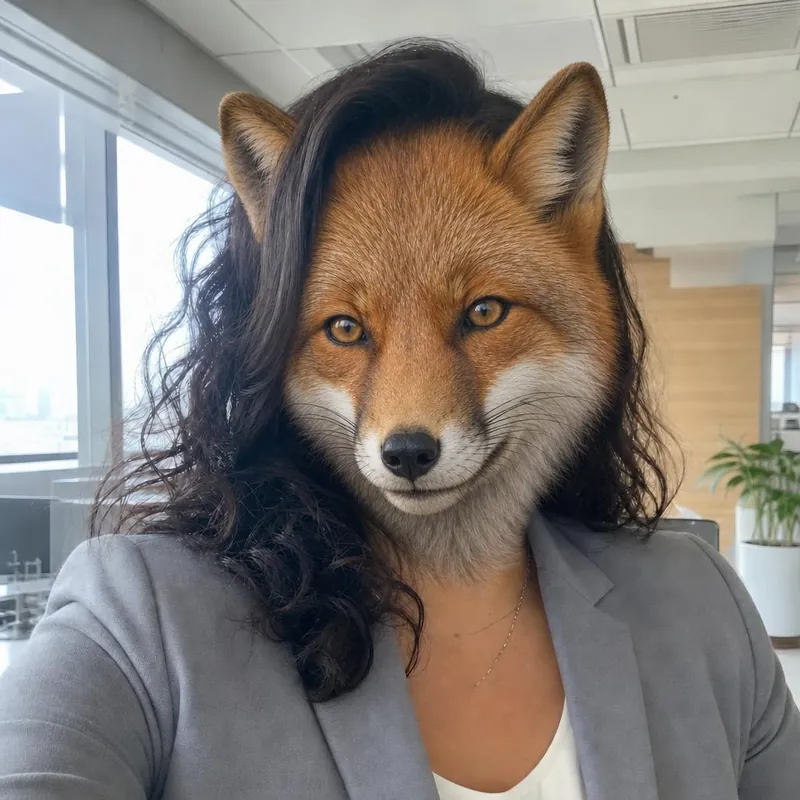
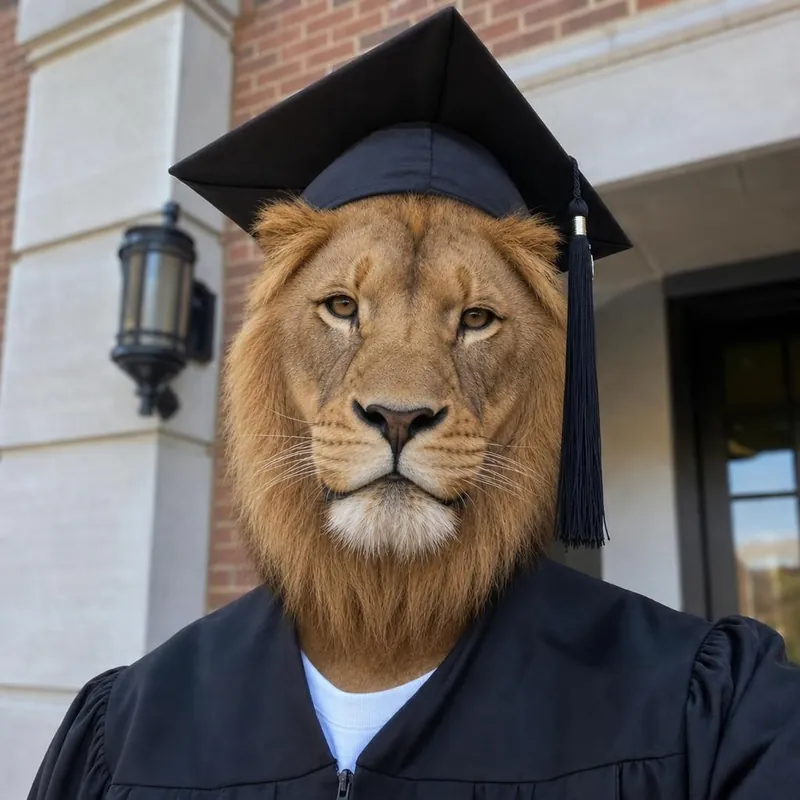
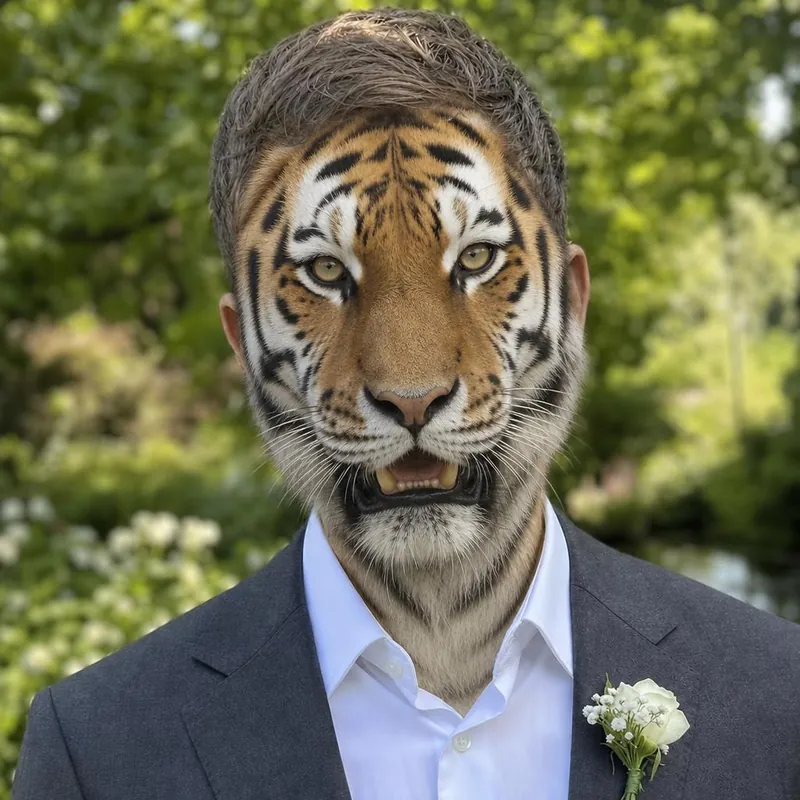
Why cropping helps
The one person studio expects one face. When that face fills more of the photo, the swap has more detail to work with.
Crop on a phone
Open the photo in your phone's photo app, choose Edit, then Crop. Drag the corners around the person and save the result as a copy.
Crop on a computer
Open the photo in the built-in photo or preview app, choose the crop tool, select the person, and save a copy as JPG or PNG.
Aim for a square
Results are 1024 × 1024. A roughly square crop with the face near the middle is reframed the least.
Keep head and shoulders
Leave the whole head, the hair and the shoulders in the crop. The AI is asked to keep them, and they make the picture look like the person.
More than one person?
Do not crop a group down to faces one by one. Use the group photo studio with the whole photo.
Ready to see your animal face?
Start with a free watermarked preview. No account needed.
Choose your studio ↗